Link Group
Link groups are used to group a number of links together and display these links on a coverage or multi map. To create a link group, hover overselect the Link Group button onin the left side barnavigation menu, and then select New Link Group.
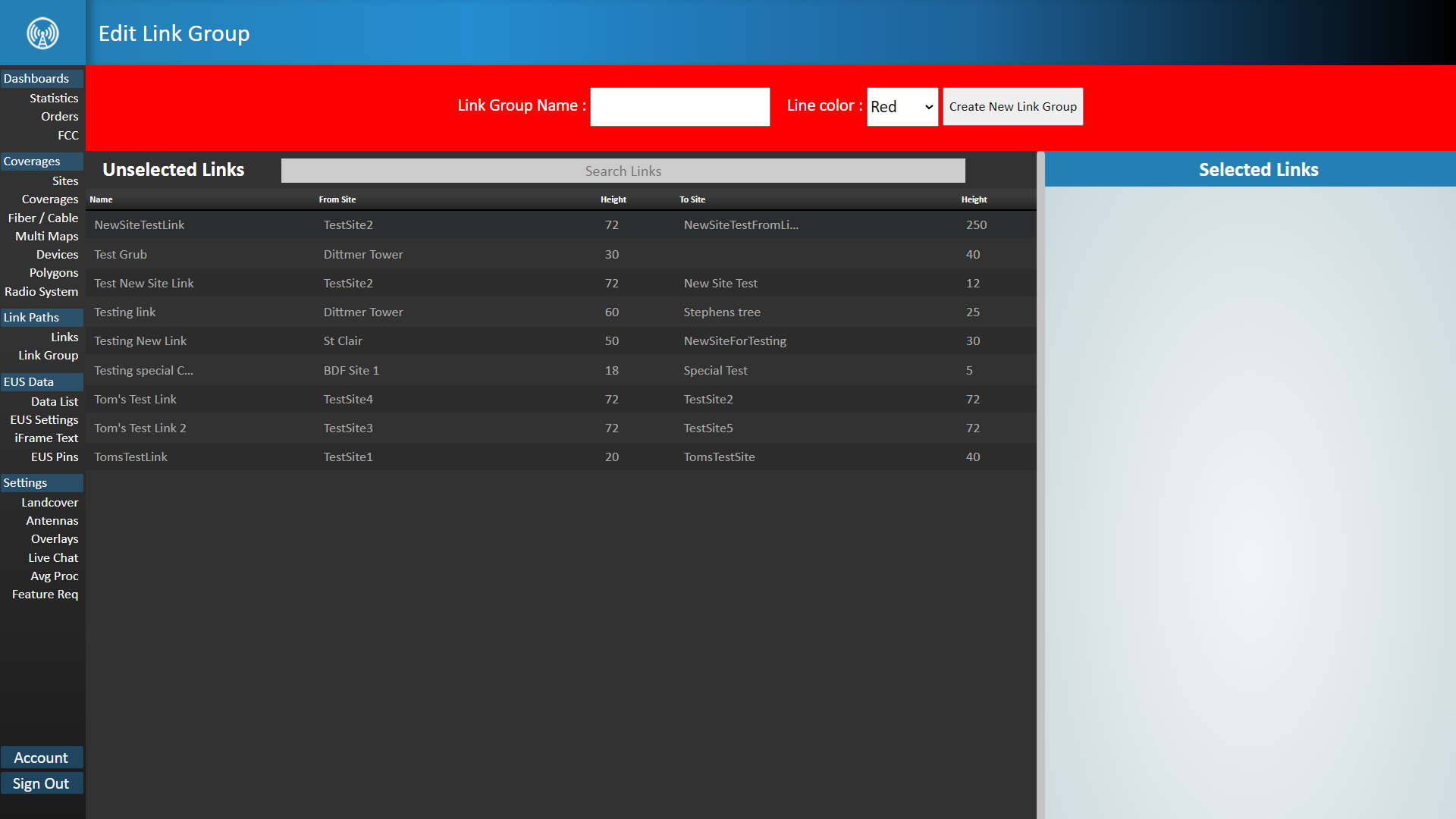
HereThe interface view by default will contain a list of links that exist in your TowerCoverage account. If you have not created any links there will be no links in the list to pick from and you will neednot be able to proceed.
The first step in this process is to set a name for theyour linkLink group.Group. This name will be displayed on the link group dropdown under your coverage or multiMulti map. YouMap. canNext alsoyou'll select ayour link group color. If you are displaying several link groups at once, this will allow you to organize the link groups on your map.
The final step is to select what linklinks isyou want as part of the linkLink group. CheckGroup. theSimply boxes ofclick the links that you wish to have in your new link group,group thenand hitthey'll move from the createLink newSettings linkMenu groupto button.the selected links list. Click the Save Link Group button to commit your changes.
Click Hide Link Settings to see your Link Group in a Map View. Use the Zoom Buttons to Zoom in and out of the map. Click Show Link Settings to go back to viewing your Link List.
OnceClick created,Download youGroup KMZ to retrieve a KMZ file of your Link Group to use on platforms like Google Earth.
Anything created here will then haveshow access to that Link Groupup on your Link Group management page.
page, where you can either create another Link Group or delete existing Link Groups.
